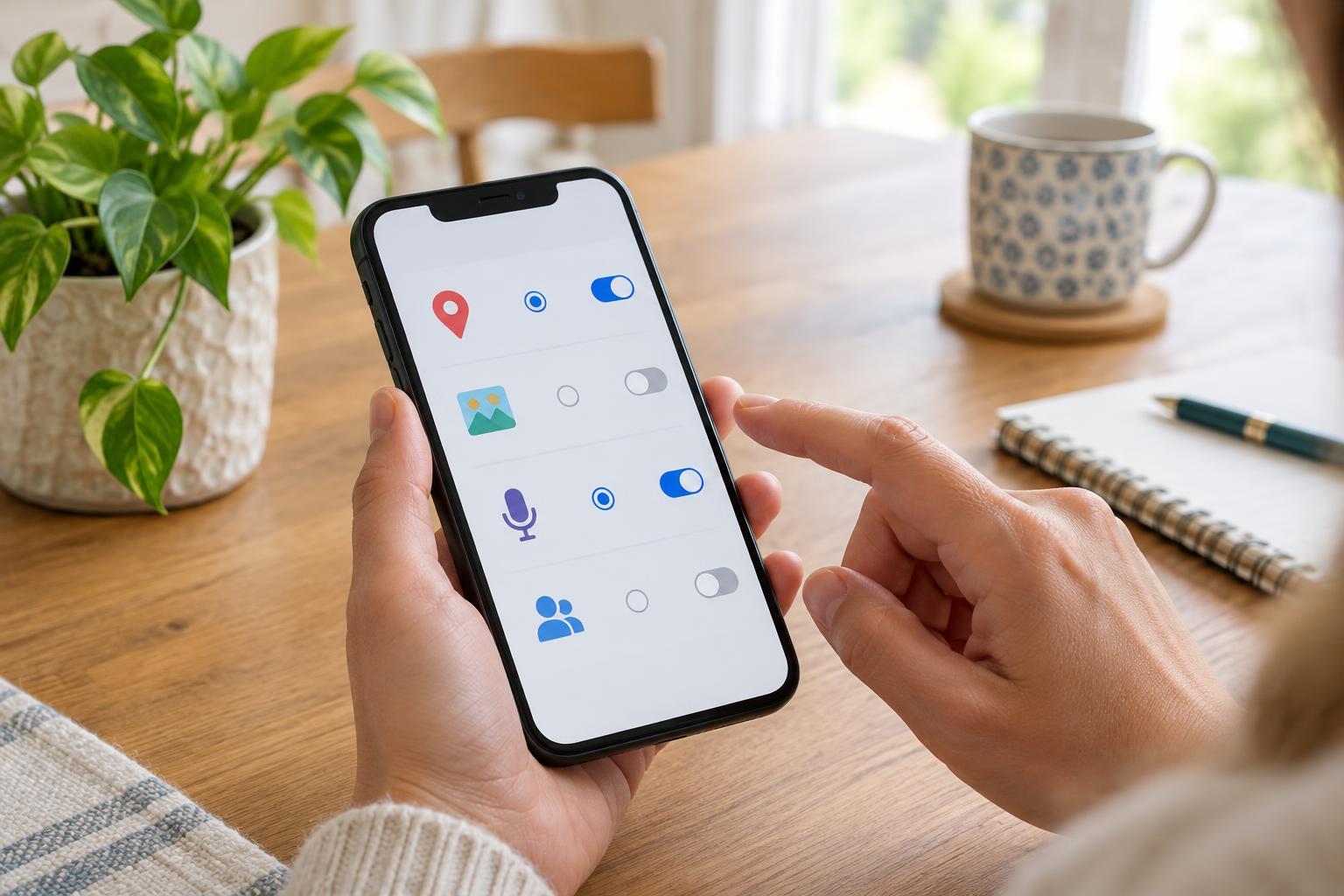
Pause for the task, not just the pop-up
Permission prompts often appear while you are trying to finish something else: scan a receipt, find a café or send a photo. Before tapping Allow, ask what you are doing right now and whether the requested access helps the app do it. A map needs your location to show where you are. A recipe app may not need your location to display a saved meal.
The choices vary by phone and app, but you may see options such as allowing access once, only while using the app, or not at all. Some permissions offer a narrower choice, such as approximate location or selected photos. Start with the least access that lets you complete your task. If the feature does not work, you can reconsider; a prompt is not always a decision you must get perfect on the first try.
Give location access a clear purpose
Location is useful for directions, nearby search and some weather features. For those jobs, access while you are using the app may be enough. Background location deserves a separate thought: it lets an app receive location information when the app is not open. That can support a feature you deliberately use, such as trip tracking, but it is worth checking whether you need that feature regularly.
If your phone offers approximate and precise location, choose approximate when a general area will do, such as looking up a forecast. Precise location may be more useful when you need walking directions or an accurate pickup point. You can also enter a place manually in some apps instead of granting location access. If an app asks for location before you have reached a location-based feature, it is reasonable to decline and see whether it asks again when needed.
Keep personal collections limited
Photo access can mean different things depending on the options your device offers. If you are uploading one picture to a listing or message, selecting that picture may make more sense than allowing access to your entire library. Camera access is different: it lets an app capture new images or video. Grant it when you are about to use a camera feature, such as scanning a document, and question a request that has no obvious connection to what you are doing.
Contacts, calendars and files can contain information about other people as well as you. A messaging app might use contacts to help you find people you know, but you may be able to search by name or number instead. A scheduling app might need calendar access to add appointments, though it may also let you enter them yourself. If you are unsure, try the manual route first and grant broader access only if the benefit is worth it to you.
Check microphones, notifications and broader controls
A microphone request makes sense when you start a voice note or call. If an app asks for it while you are reading or browsing, you can wait until you actually use a voice feature. The same principle applies to camera access: match the permission to a specific action rather than granting it because it appeared.
Notifications are not usually needed for an app’s basic functions, and frequent alerts can make a phone feel harder to manage. Allow them for timely things you want to see, then use the app’s settings or your phone’s notification settings to turn off less useful categories where available. A delivery update might be helpful; every promotion may not be.
Some requests reach beyond ordinary photos or location access. Accessibility access, device administration, the ability to appear over other apps, or access to all files may give an app wide-ranging capabilities. These can serve legitimate purposes, but pause if a simple app asks for them. Read the explanation, consider whether the feature truly requires that level of access, and skip it if the connection is unclear.
Make a short permissions check part of phone upkeep
You do not have to remember every choice you made in a hurry. Open your phone’s settings and look for privacy, security or app permission controls; the names and layout depend on the device. Review access by app or by permission type. Pay special attention to apps you rarely open, permissions set to allow all the time, and access that no longer fits how you use an app.
If a feature stops working after you remove a permission, try the task again and read the new prompt. You can grant the access needed for that task without automatically restoring every previous choice. A useful rule is simple: allow access when you understand the job it supports, choose a limited option when one is available, and revisit the decision when your habits change.