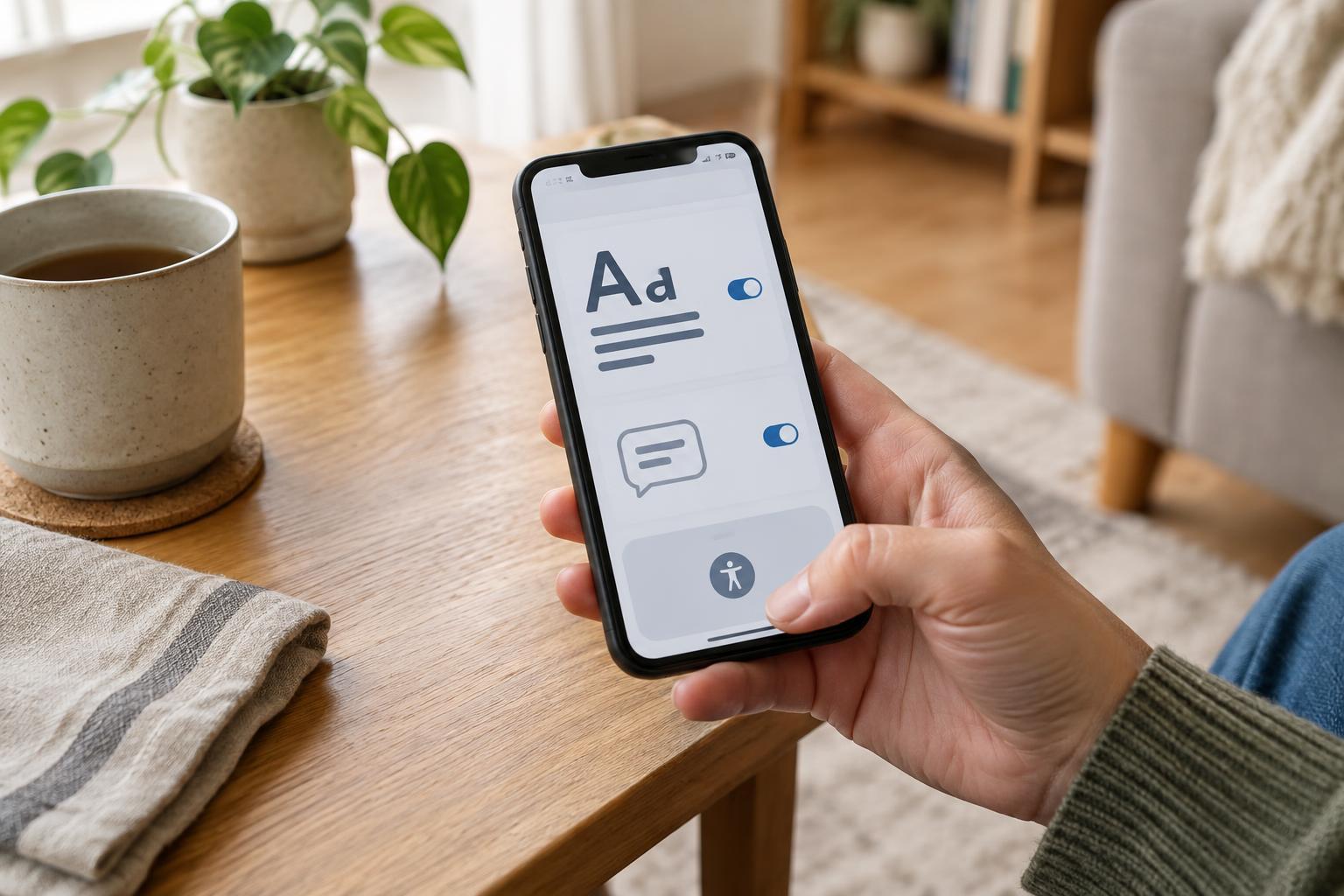
Start with one task that feels awkward
Accessibility settings are useful for anyone who squints at a recipe, misses a spoken direction or struggles to tap the top of a screen while carrying a bag. You do not need to change everything at once. Pick a task that regularly slows you down, adjust one setting, and try it during an ordinary day. If it does not help, change it back.
On most phones, Accessibility is a section in the main Settings app. You can also search Settings for terms such as “text size,” “captions” or “one-handed.” Names and menu paths vary by phone model, operating system and app, so searching is often faster than following a fixed sequence of taps. Before making several changes, note your original choices or take a screenshot of the settings page.
Make text readable without losing the layout
If messages and menus look too small, try the phone’s text-size setting first. Increase it a little, then check a message, a browser page and an app you use often. Some apps follow the system setting more closely than others. If text is still hard to read, look for display-size or screen-zoom controls, which can enlarge buttons and other interface elements as well as words. A large jump may leave less room on screen, so small adjustments are worth testing.
Bold text, higher contrast and reduced transparency can help distinguish labels from their backgrounds. If a bright screen is uncomfortable, experiment with brightness and dark mode in the places you actually use your phone; neither option is automatically better for everyone. For occasional small print, a magnification feature lets you zoom in without keeping the whole interface enlarged. It is handy for reading a label or checking a detail, but learn its gesture or shortcut before you need it.
Give sound a written backup
Captions are helpful when you cannot turn up a video, are in a noisy room or simply prefer to read along. Look for caption controls in the video app and in your phone’s accessibility settings. Some phones also offer live captions for supported audio. Availability and accuracy vary, and automatically generated words can be wrong, especially with names or background noise. Check important details another way rather than relying on a caption alone.
If alerts are easy to miss, review notification settings for the few apps that matter most. A vibration pattern or visual alert may be more useful than making every notification louder. For calls and media, check whether your phone offers separate volume controls or audio-balance options. Adjust them while listening to familiar content at a comfortable level. Keeping less important alerts quiet can also make the sounds you do want to notice easier to pick out.
Bring common controls within thumb reach
Large phones can be awkward to use while standing on a bus or holding groceries. Search for “one-handed mode” or “reachability” in Settings. Depending on the phone, this may pull the top of the screen down temporarily or shrink the usable display toward one side. Try opening a frequent app and reaching its top buttons before deciding whether the gesture feels natural.
Your keyboard may have its own one-handed layout, moving the keys closer to your left or right thumb. It can make short replies easier, though the smaller keyboard may not suit longer writing. Voice typing is another option when your hands are busy, but review the result before sending it. If you are speaking somewhere others can hear, consider whether the message is private; voice features and their data handling can differ between keyboards and services.
Keep the changes you can remember
A setting only helps if you can use it easily. After testing a feature, practice turning it on and off twice. Many phones let you assign frequently used accessibility features to a shortcut, such as a button press or an on-screen control. Choose one or two favorites rather than filling the shortcut with options you will have to sort through.
Finally, test your setup in real situations: reading a shopping list outdoors, watching a short video with the sound low, or answering a message with one hand while seated. If an adjustment helps in one app but gets in the way elsewhere, scale it back or use it only when needed. The aim is not a perfectly customized phone. It is a phone that asks a little less effort of you each day.