Start with the photos you look for most
Before reorganizing your entire library, think about what you have trouble finding. Maybe it is a picture of a recipe you liked, the dimensions you photographed at a furniture store, or last summer’s weekend trip. Those searches tell you what your system needs to do. The goal is not to give every image a perfect home; it is to make the photos you return to easy to retrieve.
Start with one manageable batch, such as the past month or your most recent trip. Delete obvious accidents, duplicate shots you do not want, and screenshots that have served their purpose. If choosing between similar portraits takes too long, keep both for now and move on. A useful first pass reduces clutter without turning an ordinary evening into an all-library project.
Be careful when deleting from a photo app that syncs across devices. A deletion may carry over to your tablet or computer, and a synced library is not necessarily a separate backup. Check how your app handles deleted items before doing a large cleanup.
Use a few albums with clear jobs
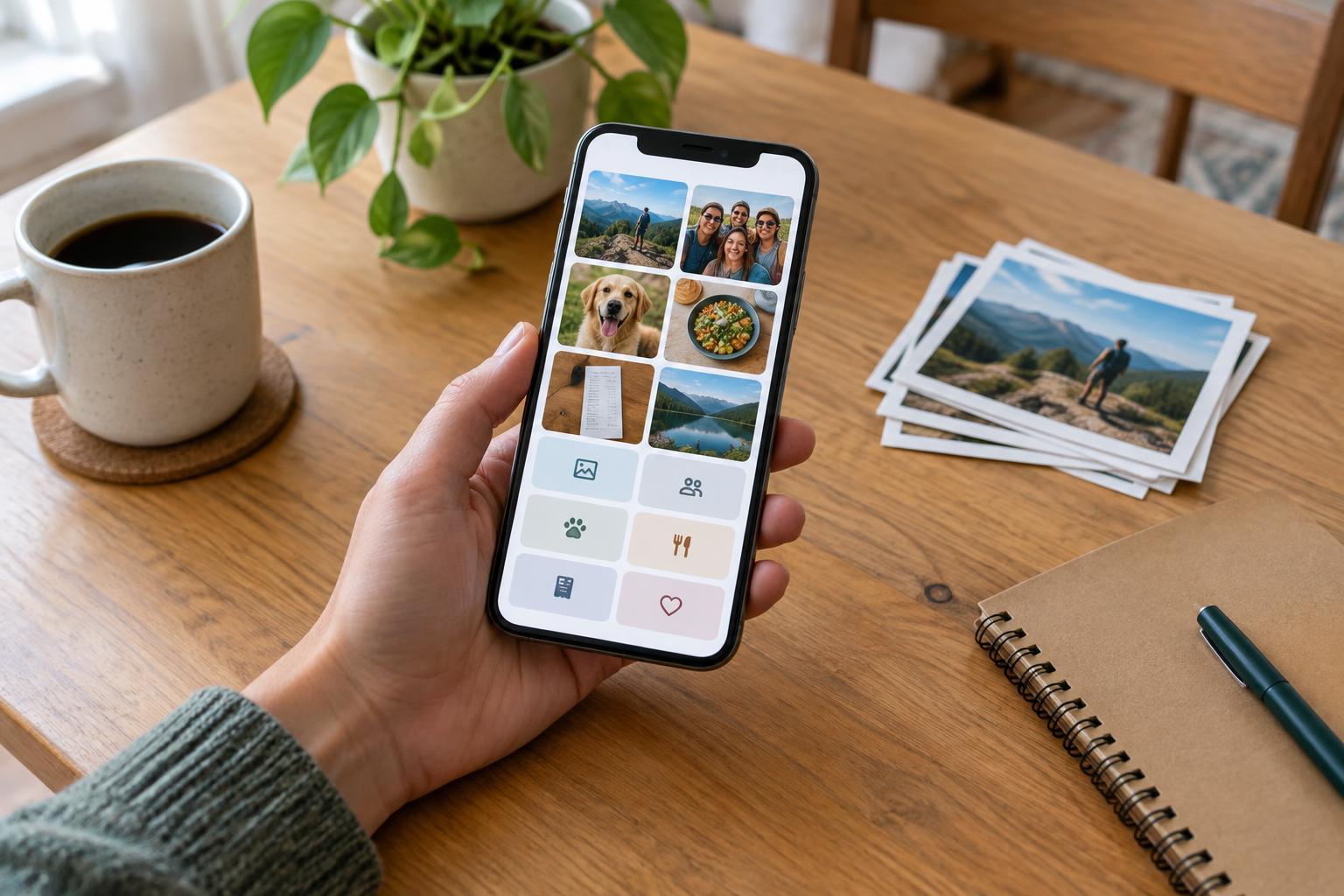
Albums work best when their purpose is obvious. A small set might include Home Ideas, Recipes to Try, Important Reference, and Trips. Name albums for how you will search, not for how a perfect filing cabinet would be labeled. If you would think “Where is that paint color?” make a Home Ideas album rather than a broad album called Miscellaneous.
You do not need an album for every meal, person, or Saturday. Your phone already arranges photos by date, and many photo apps offer other ways to browse. Save albums for collections that are hard to gather quickly or that you want to revisit together. A weekend away, for example, may deserve one album containing the best scenery, meals, and group pictures.
Keep reference photos separate from memories when that distinction helps. A screenshot of parking instructions and a favorite sunset from the same outing have different futures: one can be removed after the trip, while the other may be worth keeping. If your app supports favorites, use that feature for a small selection you genuinely want to see again.
Make search do some of the work
Before building more albums, try searching your existing library. Depending on the app, you may be able to search by date, place, person, or an object in a picture. Search features vary, so test yours with a few photos you know are there. If it reliably finds “bike” but not the name of a particular shop, that tells you where a little manual labeling would help.
For images you will need later, add a short caption, description, or note if your app provides that option. Useful details are specific: “living room window measurements” or “pasta recipe from the blue cookbook” is easier to recognize than “important.” Another option is to put a reference image in the notes app where you keep the related project information. Choose one place you will remember to check.
Screenshots deserve their own quick review. They often capture information with a short shelf life: a shopping option, a confirmation screen, or a message to follow up on. Once you have completed the task or saved the essential detail elsewhere, you can remove the screenshot instead of asking your photo library to be a permanent to-do list.
Check your backup before you need it
Organization is much less useful if a lost phone also means lost photos. Find out whether your pictures are being backed up, which account holds them, and whether new images are included automatically. Settings and storage limits differ between services. Open the backup destination and confirm that a few recent photos appear there rather than assuming a setting is working.
If the pictures matter to you, consider keeping another copy outside your everyday synced library, such as on a computer or an external drive. That copy should be checked occasionally, too. This is especially worth doing before a major deletion: verify that the photos you intend to keep are accessible in the place you expect. Avoid relying on an album name as proof of a backup; albums may simply organize images within the same library.
Maintain it in ten-minute passes
A simple routine beats a one-time overhaul. Once a week or whenever you have a quiet moment, review recent photos. Delete the obvious clutter, mark a few favorites, move any useful references into the right album or note, and check whether a temporary screenshot can go. Stop when your time is up; older photos can wait.
As you use the system, adjust it to match your habits. If an album stays empty, you probably do not need it. If you repeatedly search for the same type of image, give that type a clear home. The best photo organization system is not the most detailed one. It is the one you can keep using—and the one that helps you find the picture you came for.