Start with the screen you use every day
There are two ways to make a phone battery last longer: use less power between charges and help the battery retain its capacity over time. You do not need a complicated routine for either one. A few settings, adjusted to fit how you actually use your phone, can make it easier to get through the day.
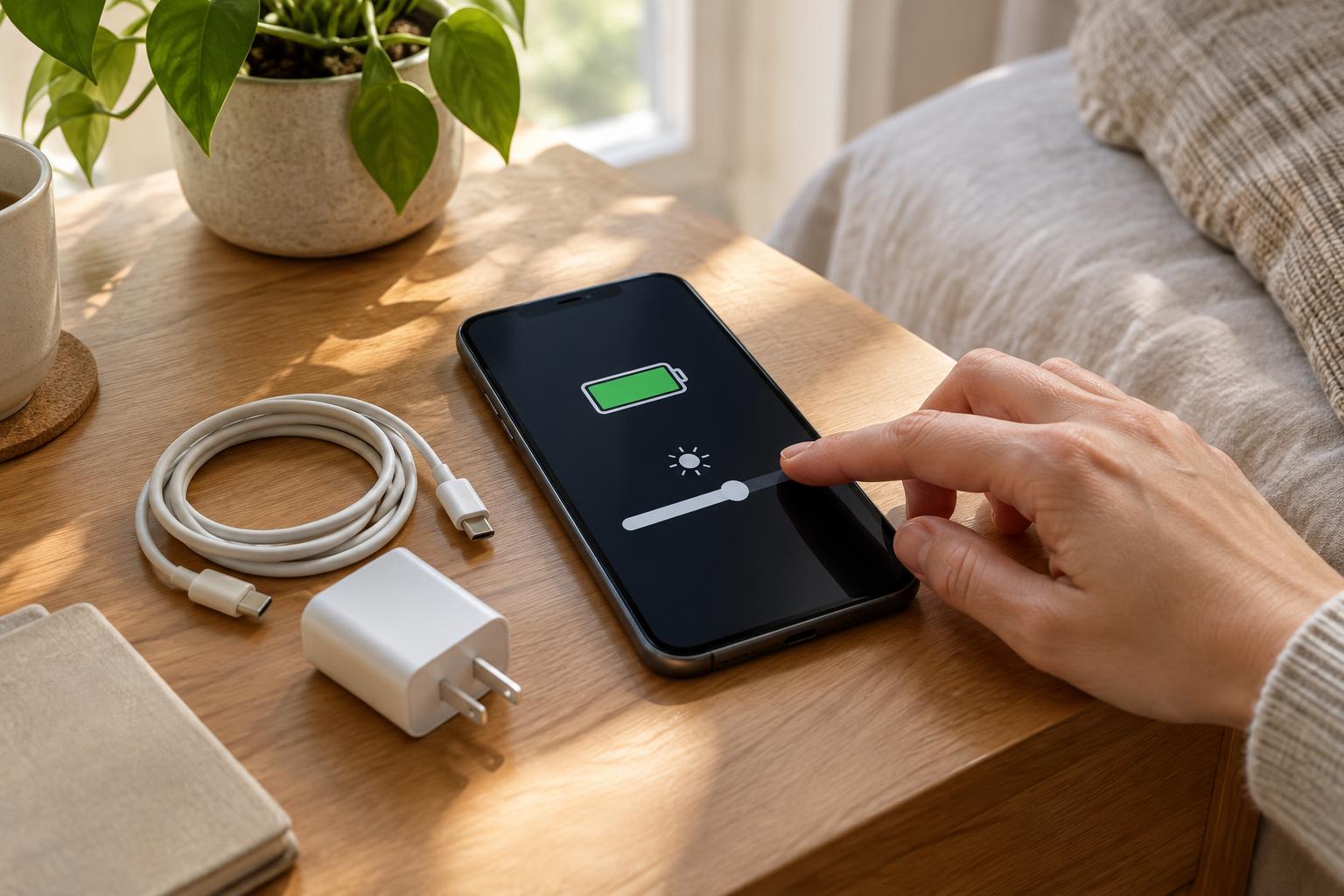
The screen is a useful place to start because it is often one of a phone’s larger power users. Set the brightness to a comfortable level rather than the highest one, and try automatic brightness if your phone offers it. A shorter screen timeout also helps when you frequently set your phone down without locking it. Choose a timeout that gives you time to read a recipe or message without repeatedly waking the display.
If your phone has an always-on display, try turning it off for a few days and see whether you miss it. Dark mode may help some phones, particularly those with OLED screens, but its effect varies with the display and what is on it. Comfortable visibility matters more than chasing a setting that makes the phone harder to use.
Give apps only the background access they need
Some apps check your location, refresh content, or send notifications when you are not actively using them. Open your phone’s battery settings to see which apps are using power. Look for an app that seems unusually active compared with how often you use it, then check its permissions and background settings before making changes.
For example, a navigation app needs location access during a trip, but a shop app may not need your precise location all day. Many phones let you choose location access only while an app is in use. You can also turn off background refresh for apps that do not need to deliver timely information. Keep it on for anything you rely on for messages, travel updates, or other prompt alerts.
Notification settings are worth tidying for your attention as well as your battery. If a game or retailer wakes your screen for every promotion, silence those alerts while keeping the ones you value. There is usually no need to swipe every app away after using it; repeatedly reopening apps is not a reliable battery-saving strategy.
Use connections and power-saving modes deliberately
A phone may use more power while struggling to maintain a weak mobile signal. If you spend a long stretch somewhere with poor reception but have a dependable Wi-Fi connection, using Wi-Fi can help. In a place with no service and no need to be reachable, airplane mode prevents the phone from continuing to look for a network. Turn it off when you need calls, messages, or mobile data again.
Battery saver or low power mode is designed for the days when a charge has to stretch further. It may limit background activity, visual effects, or other features, depending on your phone. Try it before a long journey or an afternoon away from an outlet, and notice which changes affect you. If you need live updates from a particular app, check that they still arrive as expected.
Streaming video, gaming, navigation, and video calls can drain a battery faster than reading or sending a few messages. When you know you will need navigation later, consider charging before you leave or carrying a small power bank. Planning for a demanding day is often simpler than trying to squeeze every possible minute out of routine settings.
Charge for convenience, but avoid excess heat
Modern phones manage charging automatically, so you do not need to drain the battery to zero before plugging it in. Short top-ups are fine. If your phone offers optimized or adaptive charging, consider enabling it; the feature is intended to reduce the time a battery spends fully charged when a longer charging session is expected. Charge to full when you need the range rather than worrying about a perfect percentage every day.
Heat deserves more attention than an exact charging number. Avoid leaving your phone in direct sun or a hot car, and move it to a cooler spot if it becomes noticeably warm while charging. Charging while running a demanding game or navigation app can add to the warmth. Use a compatible, reputable charger and cable, and follow your phone maker’s guidance if the device reports a temperature warning.
Know when settings are no longer the answer
Phone batteries gradually hold less charge as they age. If your usual habits and settings have not changed but the phone now struggles to make it through a familiar day, look for a battery health or capacity page in settings, if your model has one. Also check whether a particular app began using much more power than usual. Those clues can help you decide whether to adjust a setting, update an app, or consider a battery replacement.
The most sustainable routine is one you will keep: a comfortable screen brightness, sensible app permissions, battery saver when needed, and a charging spot away from heat. Pick one or two changes to try first. If your phone remains convenient to use and reliably lasts until you can charge it, you have found a better balance than any rigid battery rule can offer.