Start with what you would miss
Imagine replacing your phone or laptop tomorrow. Which things would be difficult to recreate? For most people, the list includes photos, personal documents, contacts, notes and work in progress. Write down where those items live. Your photos might be on your phone, while important documents sit in a laptop folder and contacts are tied to an online account. This quick inventory tells you what your backup plan needs to cover.
A backup is a separate copy you can use after a device is lost, damaged or reset. Syncing is helpful, but it is not always the same thing: a deletion or unwanted change may sync to your other devices too. Check whether a service keeps previous versions or recently deleted files, and for how long. The goal is not to save every temporary download. It is to make sure the things you value have a clear route back.
Set up your phone’s built-in backup
Both iPhone and Android phones offer built-in ways to back up device data through an account. In your phone’s settings, look for the backup options associated with your Apple or Google account. Turn on the features you need, then check what is included. Depending on your phone and apps, a device backup may cover settings and app information, while photos, messages or files may have separate backup or sync settings.
Give the first backup time to finish on a reliable Wi-Fi connection, ideally while the phone is charging. Then look for a status message or a recent backup time rather than assuming the switch worked. If you use an authenticator app, save its recovery options using that app’s instructions; a general phone backup may not be enough to regain access. Keep recovery codes somewhere you can reach without the phone.
Give your laptop two places to save your work
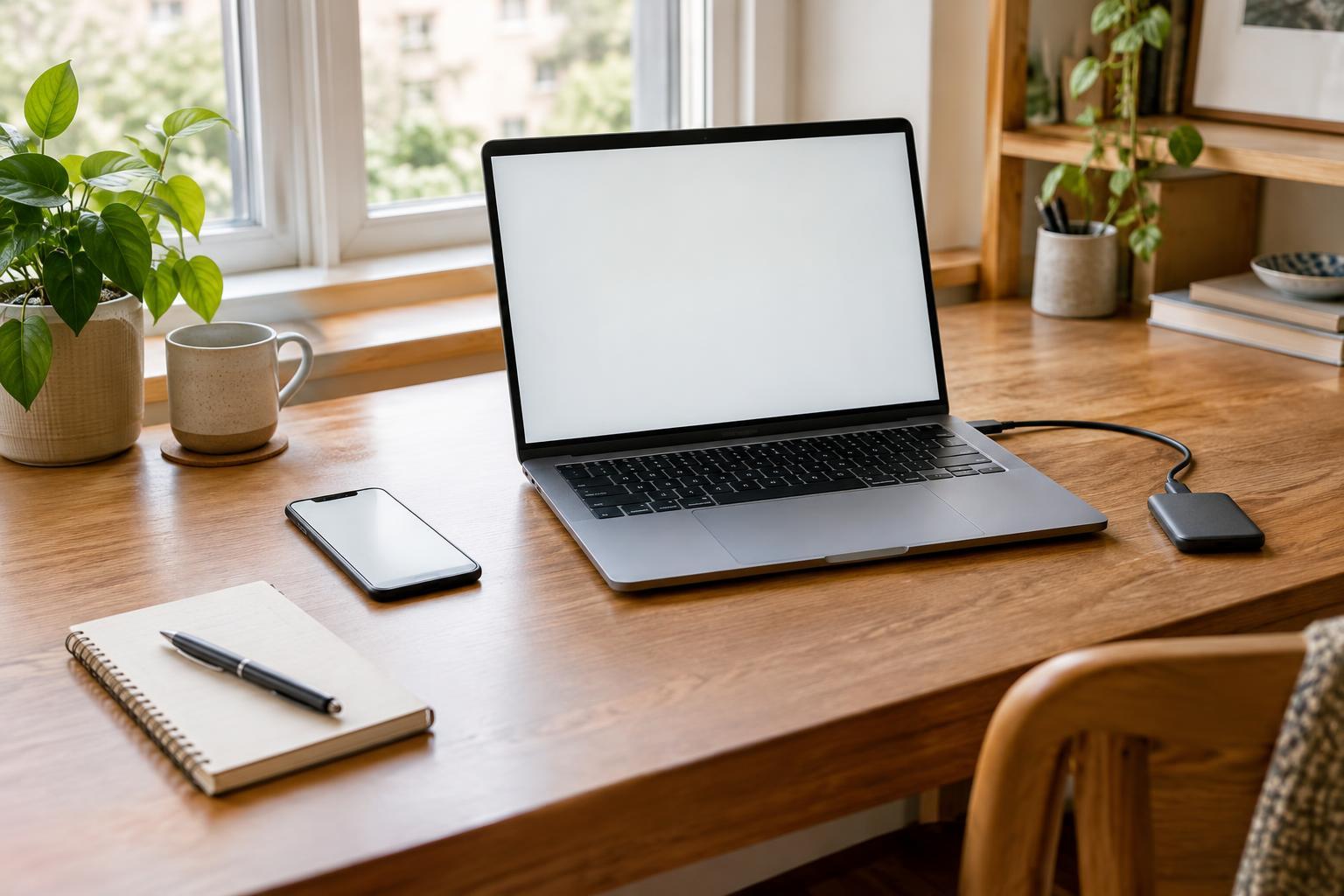
For a laptop, a practical starter setup combines an external drive with a cloud service. Built-in tools such as Time Machine on a Mac or Windows backup options can help copy files to an external drive. Choose a drive with enough room for your files and room to grow, follow your computer’s setup prompts, and let the first backup complete. Later backups can usually be much quicker.
Cloud storage adds a copy that is not sitting beside the laptop, but check which folders it actually includes. Saving a document to a synced folder does not automatically protect a different folder on your desktop. If your budget is tight, begin with the files you cannot replace and check the storage included with an account you already use. An external drive and a cloud account serve different purposes: one can provide a local copy, while the other may remain available if both your laptop and drive are lost.
Make the routine easy to maintain
A backup plan works best when it requires little memory. Leave automatic phone backups enabled, keep your laptop’s backup tool running as intended, and pick a recurring time to connect an external drive if it is not always attached. For example, plug it in while you do a weekly desk tidy. If you work on something important between scheduled backups, make an extra copy when you finish.
Protect the copies as well as the originals. Use a strong, unique password for each main account and turn on two-factor authentication when available. Consider encryption for an external drive that holds personal files, and store its password somewhere safe: encryption will not help you if you cannot unlock your own backup. Keep the drive somewhere dry and secure, and avoid leaving your only backup permanently next to the device it protects.
Test a small restore before you need a big one
A completed-backup message is reassuring, but a restore test is better. Open your backup tool or cloud account and find one photo and one document you recognize. Restore copies to a temporary location, then check that they open. You can delete the test copies afterward. This small exercise helps you learn the steps while there is no pressure and may reveal a folder you forgot to include.
Revisit your setup when you get a new device, change accounts, install an app that holds important information or start storing files in a new place. You do not need a complicated system: know what matters, keep more than one copy in more than one place, and check occasionally that you can get it back. That is the heart of a useful backup habit.