Start with the files you actually need
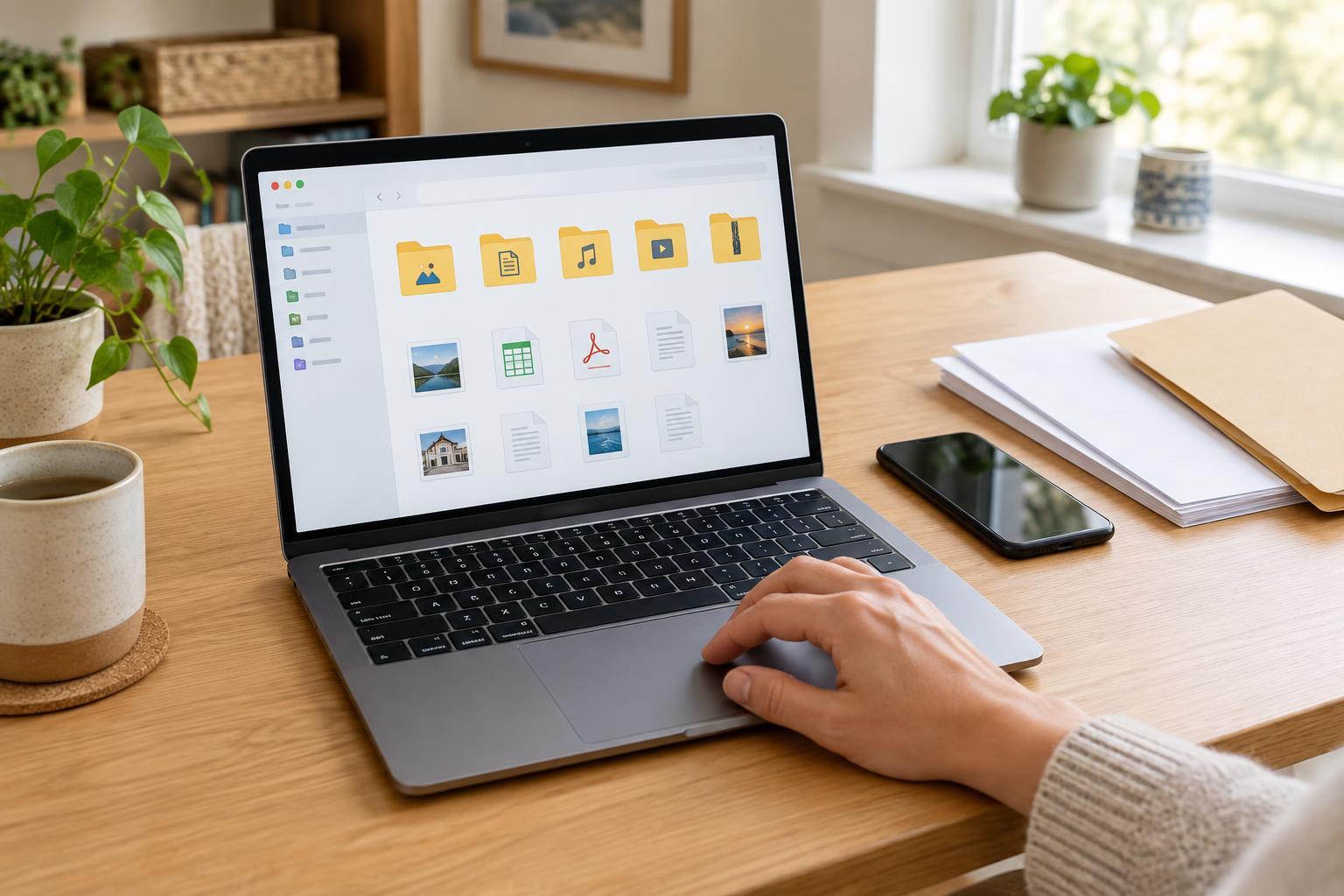
The Downloads folder is a convenient landing spot, not necessarily a good long-term home. It may contain a receipt you need next month beside an installer you used once. Before reorganizing anything, open the folder and sort by date. Look through recent files first, then scan older ones for items you would have trouble replacing. You do not need to identify every mystery file to make progress.
Move obvious keepers into a few broad folders, such as Household, Work or School, and Projects. Put receipts, manuals and forms where you would expect to look for them later. If a file belongs to a specific task, keep it with that task rather than inventing a special folder for its file type. A cooking project, for example, might include both a recipe PDF and a shopping list. For ideas on projects you might want to keep together, browse Creative Hobbies · Everyday Discoveries.
Choose a simple home for saved files
Pick one main location you can reliably reach: your computer’s Documents folder, a file-storage service you already use, or another familiar place. Inside it, create only the folders you need now. A folder called Household can hold appliance instructions and lease-related paperwork; a folder called Projects can hold materials for a trip or a hobby. If a folder grows unwieldy, add a subfolder then. Starting with an elaborate system makes it easier to forget where things belong.
On a phone, check where your browser or apps save downloads. The location may vary by device and app, so use the file manager’s recent-files view if you are unsure. You can move important items to your chosen home and leave temporary downloads where they are until cleanup day. If you save recipe cards or cooking guides, keeping them in one food-related folder may be more useful than scattering them among downloads; Food Skills · Everyday Discoveries offers another place to browse when you want to build those everyday skills.
Rename files so search can help
A descriptive name is often more useful than another layer of folders. Replace names such as document-final-2.pdf with words you would remember later, such as Lamp manual living room.pdf or Bike repair estimate.pdf. For records that repeat, add a date in year-month-day order when the exact day matters, or year-month when it does not. Names such as 2025-04 Utility bill.pdf will sort neatly alongside similar files.
Keep names short enough to read at a glance, and avoid putting sensitive details, such as full account numbers, in them. You also do not have to rename every old file. Start with items you are moving today and any older files you regularly struggle to find. Before changing a file extension—the letters after the final dot, such as .pdf—leave it as it is; changing those letters can make the file harder to open.
Treat downloads as a temporary inbox
Once a week, spend a few minutes reviewing what has arrived. Move files you want to keep, delete obvious duplicates and temporary installers you no longer need, and leave anything uncertain for another pass. Open a file before deleting it if its name is unclear. When a download includes both a document and a compressed archive of the same material, check what each contains rather than assuming one is redundant.
Be cautious with records that may matter later, including purchase confirmations, tax-related documents or agreements. If you are unsure whether to keep one, move it into a clearly named Review folder instead of making a rushed deletion decision. This is a sorting habit, not a reason to store every file forever. For more ideas to explore after your digital reset, visit Everyday Discoveries.
Make sure important files are protected
A tidier folder is easier to use, but organization is not a backup. If important files live only on one phone or laptop, consider how you would recover them if that device were lost or stopped working. Check whether your chosen storage location syncs files between devices, and remember that syncing may also copy accidental deletions. A separate backup method can provide another way to recover a file.
Test the system with a real question: Where would you look for the manual for your coffee maker, a receipt from last month or a form you downloaded yesterday? If you can find each without guessing among dozens of folders, the setup is doing its job. If not, adjust one folder name or move a misplaced file. The best system is the one you can maintain during an ordinary week.